

Graphics Files
Each graphics file consists of:
- The graphic scene: The visual representation of your design.
- Metadata: File information such as title, description, and tags.
Metadata fields
- Title: The name of the file.
- Description: A short summary visible in the Editor and Gallery.
- Tags: Keywords used for searching.
- Workspace: The file’s storage location.
- Final Flag: “Locks” the file to prevent further edits. To modify, duplicate or unlock it.
- Thumbnail: A preview image in the Gallery.

Creating & Managing Graphics Files
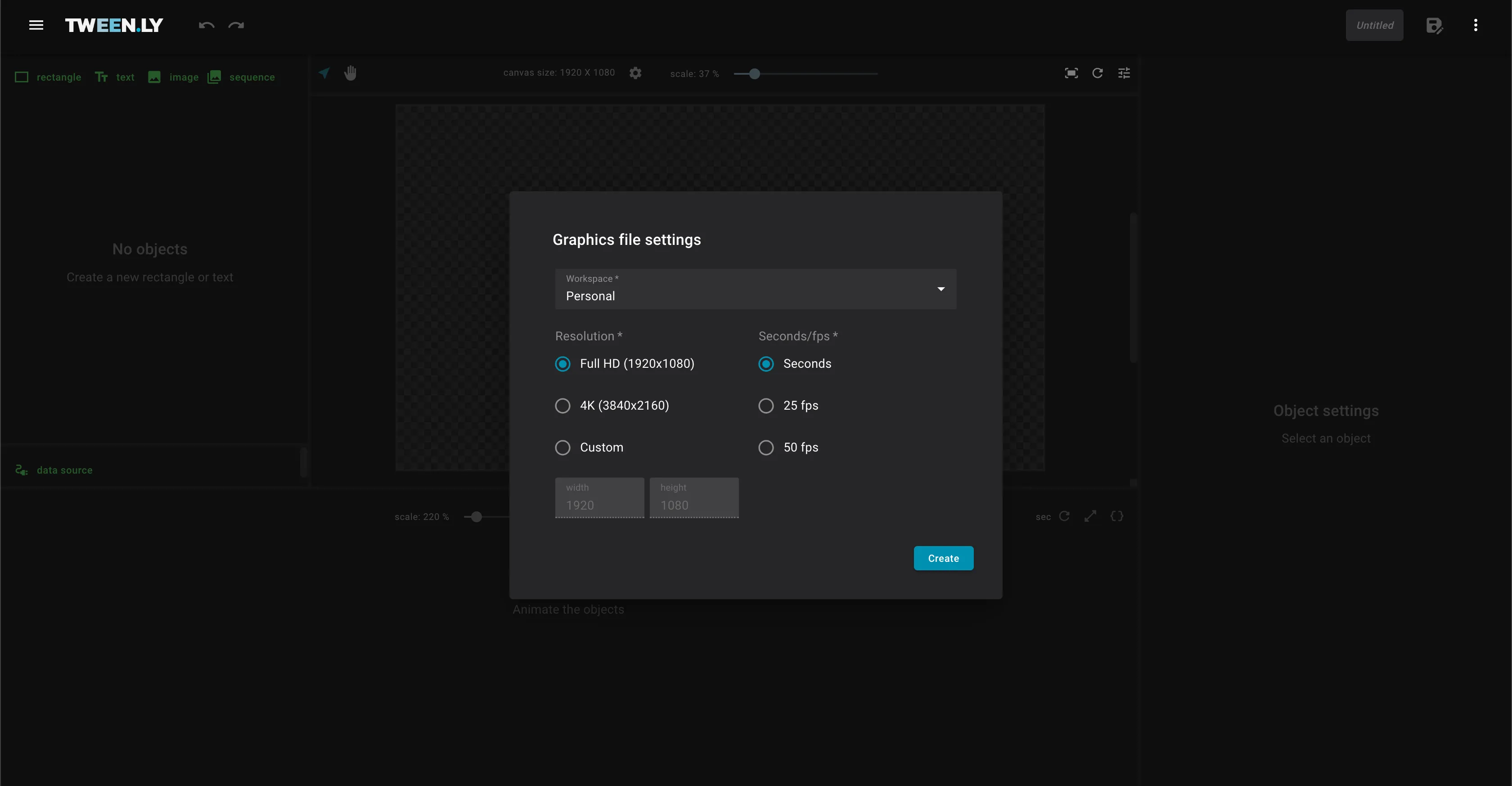
Creating a New File
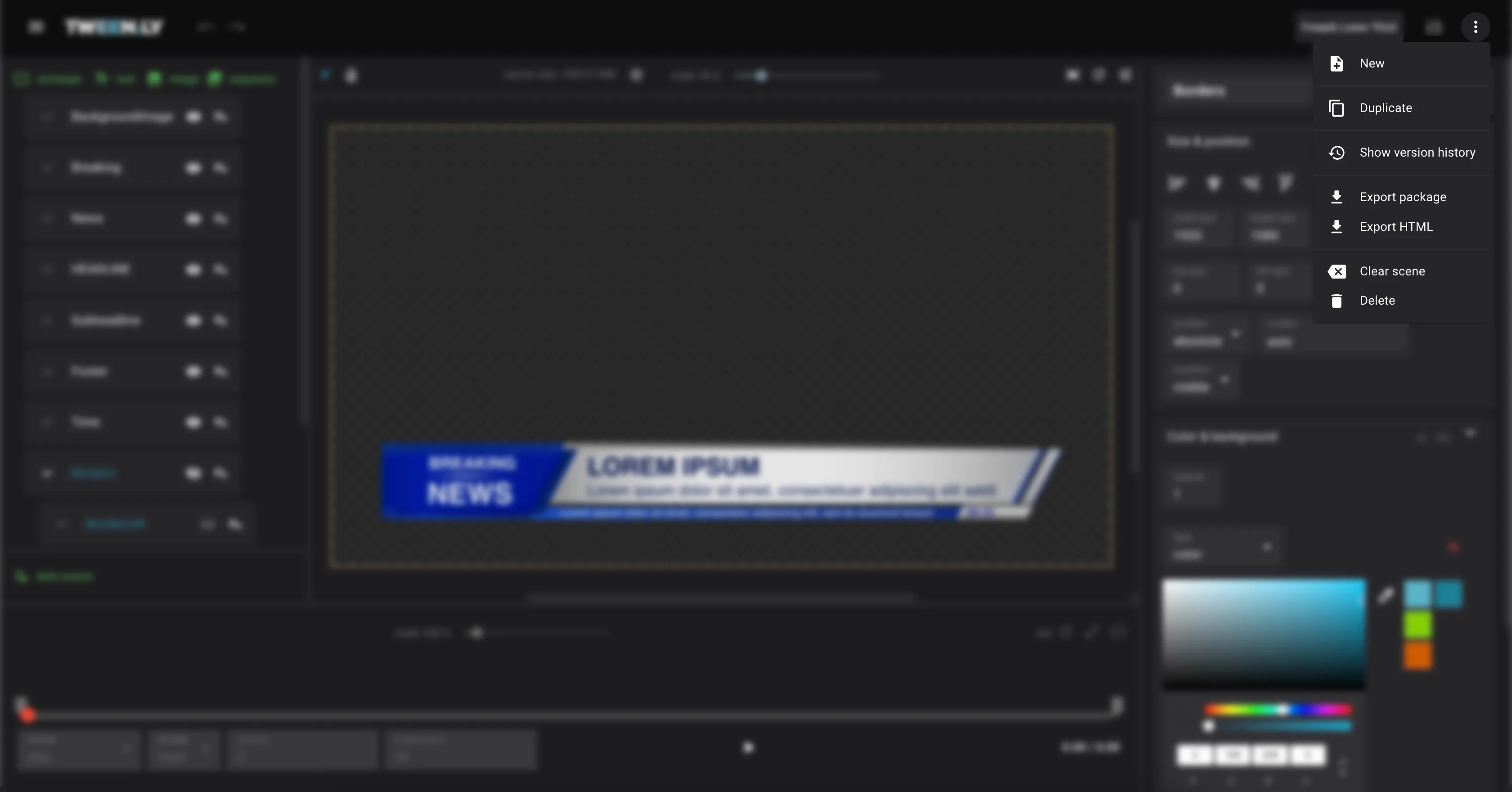
- Open the More menu in the top bar.
- Select New to clear the canvas and start a new file.
Saving a Graphics File
First-Time Save
- Ensure the scene contains at least one object.
- Click the Save in the top bar.
- Enter Title, Description, Tags, and Workspace.
- Click Save. The file is now stored in the Gallery.
Quick Save
- Click Save icon in the top bar anytime to save changes without modifying metadata.
Updating Metadata
- Click on the filename to open the metadata form.
- Edit the title, description, or tags.
- Click Save to update.
Duplicating a Graphics File
Duplicated files retain all objects, animations, and settings.
- Open the More menu in the top bar.
- Click Duplicate.
- Update metadata if needed.
- Click Duplicate to create a new file.
Clearing vs. Deleting a File
Clearing the Scene
- Removes all objects from the canvas but keeps metadata.
- Use when you want a fresh start without losing file info.
- To clear the scene, open the More menu and click Clear.
Deleting a Graphics File
Deleted files cannot be recovered.
- Open the More menu.
- Click Delete to remove the file permanently.
Exporting a Graphics File
Export your graphic for use in a playout system or for offline sharing.
- Open the More menu in the top bar.
- Select Export Package (ZIP) or Export HTML.
For a full comparison of export formats, plan restrictions, and when to use which, see Export Options.
TL;DR
- Graphics files contain a scene (visual content) and metadata (title, description, tags, workspace).
- Tweenly does not auto-save — save manually with Save or
Cmd/Ctrl + S. - Clear removes objects but keeps metadata. Delete removes the file permanently.
- Export as Package (ZIP, offline) or HTML (lightweight, requires internet).