

Data Source & API Control
Tweenly graphics can be connected to structured data feeds (JSON, XML, TXT) or controlled via API commands from a playout or automation system.
- Data Sources allow you to load external content (text, images, tickers) dynamically.
- API Control lets you update text and images in real time during playback.
No scripting is required — values are applied automatically when playback reaches the relevant objects.
Data Sources Overview
A Data Source is an asset that allows you to dynamically load external data into graphics files.
Since Data Sources are workspace assets, they can be reused across multiple graphics files within the same workspace.
Creating a Data Source
- In the Left Sidebar, click Data Source.
- A new data source setup window will appear.
- Complete the three-step process:
Step 1: Data source specification
- Name – The name of the data source.
- Slug – A unique identifier. Must be unique across the workspace.
- URL – Link to the source (JSON or XML).
- Type – Select the format (XML or JSON).
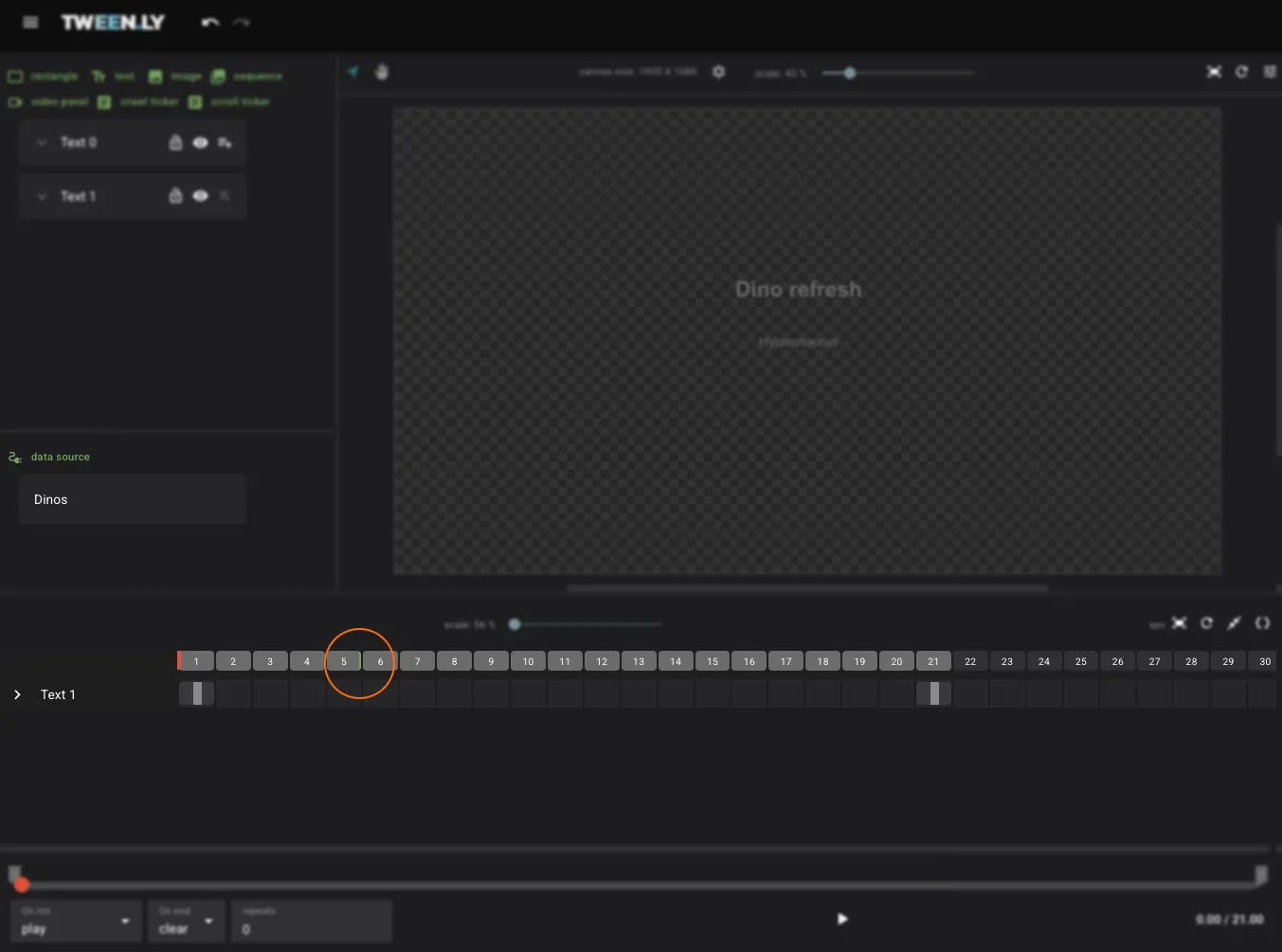
- Refresh option – Enable automatic refresh at a specified interval (seconds). A green label on the timeline indicates refresh events.
Click Next to continue.
Step 2: Loaded document data
- If loading succeeds, a preview of the document appears.
- If loading fails, an error message is shown.
Click Next to proceed or Back to review Step 1.
Step 3: Data selection
- Parsed data is displayed as a structured tree in the left column.
- Select attributes with the + button.
- Selected attributes appear in the right column, where they can be:
- Renamed (must be unique within the Data Source).
- Reordered for easier access.
- Removed if not needed.
Click Save to finalize the Data Source.
Editing a Data Source
- Editing a Data Source in one file affects all files in the same workspace.
- Existing graphics do not update automatically — you must manually reapply modified attributes.
To edit:
- Open the Data Sources Panel (below the Objects Panel).
- Left-click the Data Source to open its settings.
- Modify details and Save.
- Manually update graphics that use the Data Source to apply changes.
Deleting a Data Source
A Data Source can only be deleted if it is not used in any graphics file.
- Open the Data Sources Panel.
- Right-click the Data Source and select Delete.
Using Data Source Attributes
In Text Fields
- Create a Text Object from the Left Sidebar.
- In the Right Sidebar > Text & Font section, use the drop-down list to insert an attribute.
- Attributes appear in the format
{slug/custom-name}.
- Attributes appear in the format
- Multiple attributes can be combined with plain text.
In Images
- Create a New Image from the Left Sidebar.
- Choose Insert URL.
- Enter a static URL or select a Data Source attribute from the drop-down list.
- Click Create.
To update the image source:
- Select the image.
- In the Right Sidebar > Image section, click Replace image.
- Choose a new static URL or a Data Source attribute.
Example: Sports score feed
Here’s a typical workflow using a JSON data source for live sports scores.
Sample JSON feed
{
  "match": {
    "home_team": "FC Praha",
    "away_team": "SK Brno",
    "home_score": 2,
    "away_score": 1,
    "status": "2nd Half",
    "minute": 67
  }
}
Setup in the Editor
- Create a Data Source with Type: JSON and the feed URL.
- In Step 3 (Data Selection), select attributes:
match.home_team→ rename tohome-teammatch.away_team→ rename toaway-teammatch.home_score→ rename tohome-scorematch.away_score→ rename toaway-scorematch.minute→ rename tominute
- Enable auto-refresh every 10 seconds.
- Bind attributes to text objects:
- Home team name text →
{score-feed/home-team} - Score text →
{score-feed/home-score}:{score-feed/away-score} - Minute text →
{score-feed/minute}'
- Home team name text →
The graphic now updates automatically every 10 seconds with the latest data from the feed.
Sample XML feed
<match>
  <home_team>FC Praha</home_team>
  <away_team>SK Brno</away_team>
  <home_score>2</home_score>
  <away_score>1</away_score>
  <status>2nd Half</status>
  <minute>67</minute>
</match>
The setup process is identical — select Type: XML in Step 1, and the attribute tree in Step 3 will reflect the XML structure.
API Control
In addition to Data Sources, Tweenly graphics can also be updated by API commands at runtime.
- A playout or automation system can send values (text, images, ticker entries) via API commands.
- Input values are applied before playback starts — the system sets text and image fields, then triggers the animation.
- No manual coding or scripting is required — the binding between API input and object fields is done in the Editor.
For the full API reference, see API Control. For a practical integration walkthrough, see Playout Integration Guide.