

Assets
Assets are reusable media files — images, fonts, sequences, and data sources — stored per workspace and shared across graphics files. All users in a shared workspace can access its assets.
Types of Assets
- Images – Image files used in graphics (any browser-supported format: PNG, JPG, SVG, GIF, WebP, BMP, etc.).
- Image Sequences – Animated sequences composed of series of images.
- Fonts – Custom fonts for text elements.
- Data Sources – External data linked to graphics.
How Assets Work
Assets Creation
Assets are automatically created when they are added to a graphics file:
- Adding a New Image or Image Sequence: Select Add Image or Add Image Sequence in the Editor and upload files.
- Uploading a Font: In text properties, click Upload Font and select font files.
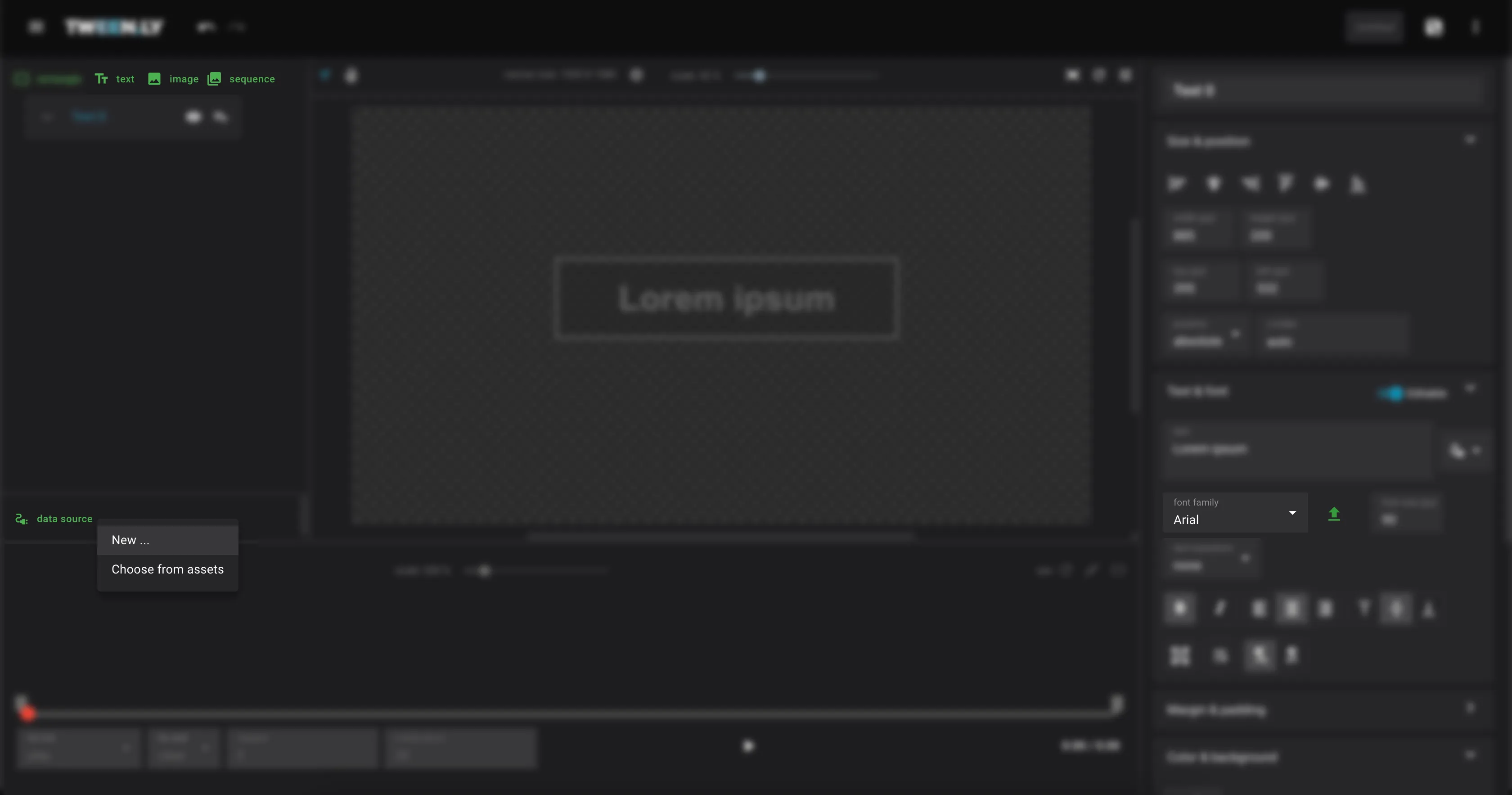
- Configuring a Data Source: Click Add Data Source and create a new connection.
All assets are stored in the same workspace as the graphics file and can be used across multiple graphics within that workspace.
Asset Behavior
- Moving a graphics file: Assets move with the file to the new workspace.
- Deleting a graphics file: Assets are not deleted and remain available for other graphics.
- Shared workspaces: All users in a shared workspace have access to its assets.
Managing Assets
Accessing Assets
- Open the Gallery and navigate to the workspace where the graphics file is stored.
- Assets in that workspace can be used in any new or existing graphics file.
Editing and Deleting Assets
- Editing Assets: Select an asset from the Gallery and click Edit to modify assets name or description.
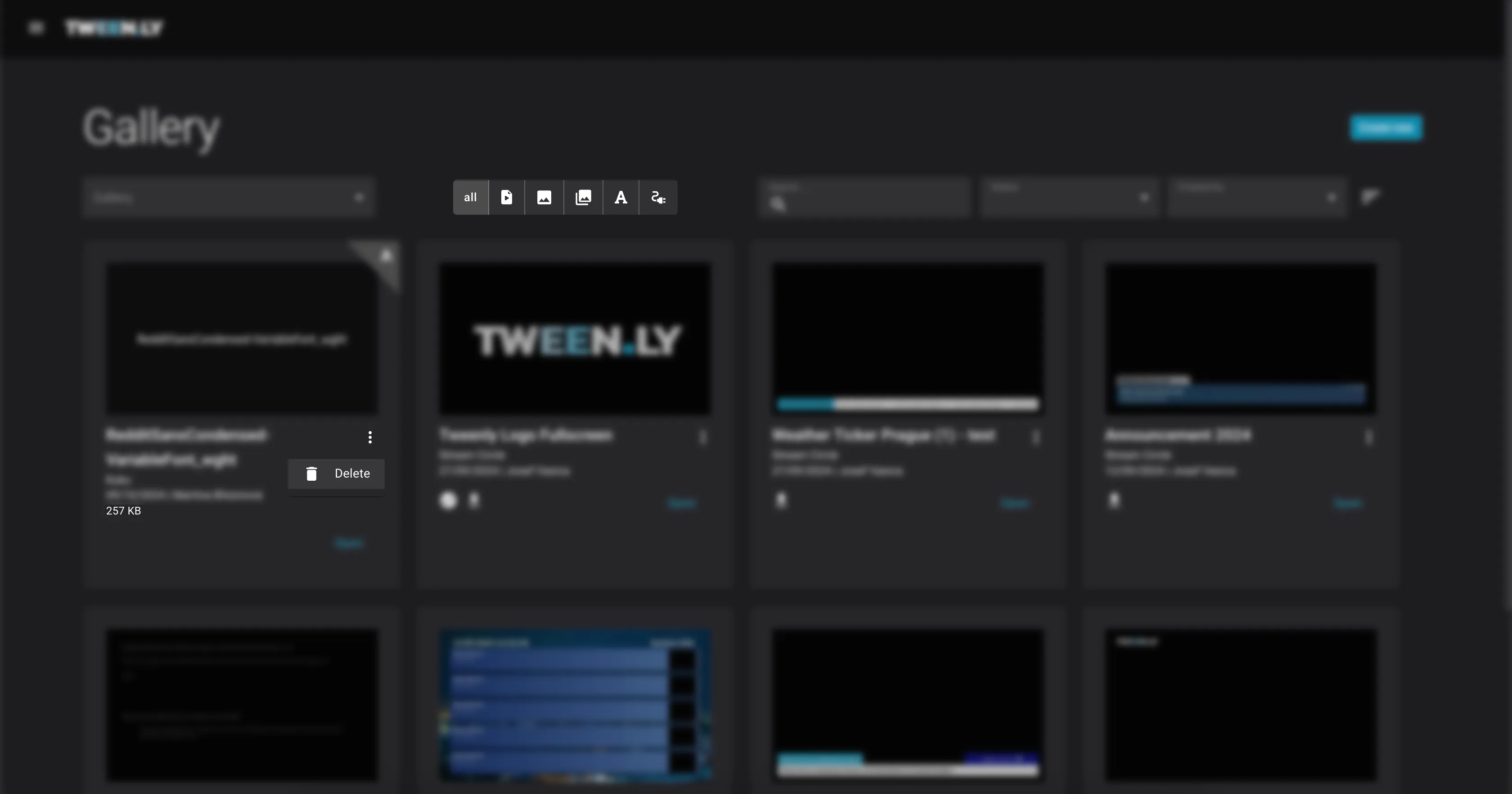
- Deleting Assets: Click on the assets more menu and choose Delete to remove it from the Gallery.
Linking Assets to Graphics
When adding an image, image sequence, or data source in the Editor, select Choose from Assets to reuse existing media. Font assets automatically appear alongside system fonts.
Monitor Asset Storage Utilization
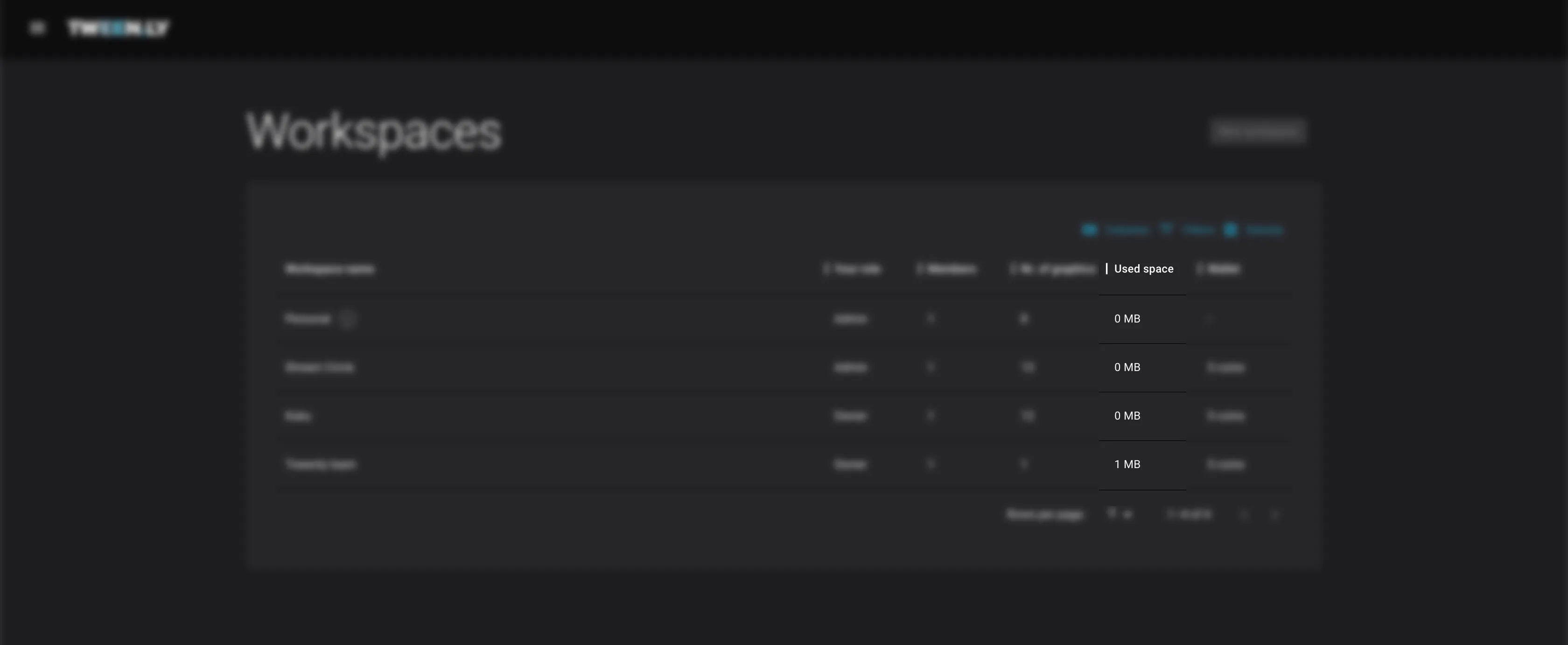
The Gallery and Workspaces display storage utilization:
- Gallery: The size of each asset or graphic file is also displayed directly in the Gallery.
- Workspaces: View the storage usage for each Workspace in the overview.
TL;DR
- Assets are workspace-bound. They are stored in the same workspace as the graphics file that uses them.
- When moving a graphics file to another workspace, its assets are copied to the new workspace.
- Deleting a graphics file does not delete its assets. They remain available for other graphics files.
- In shared workspaces all workspace members can access the assets.