
Application Overview
Tweenly consists of four key sections — Editor, Gallery, Workspaces, and Profile.
Editor
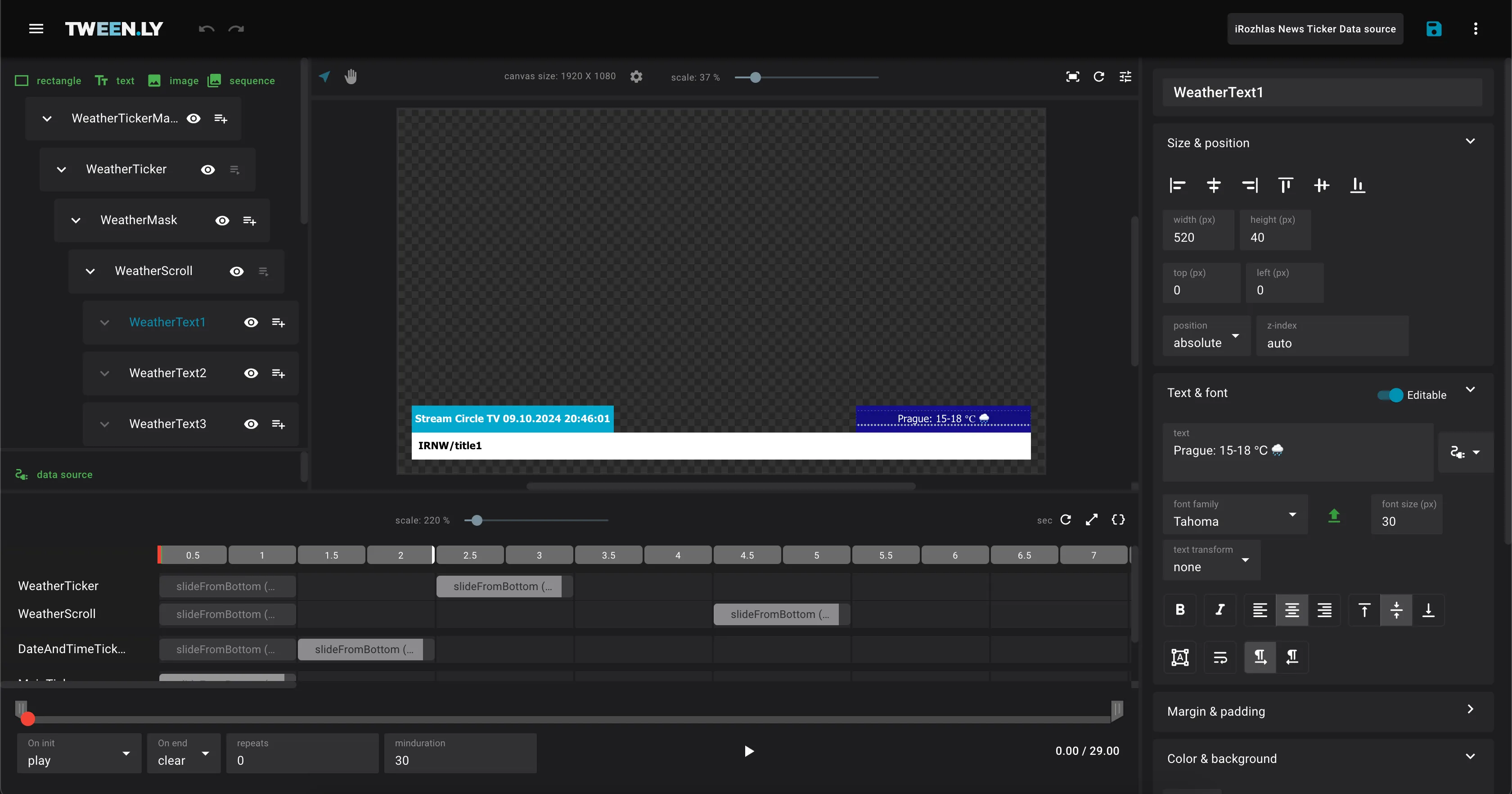
The Editor is where you create, animate, and manage broadcast graphics.
- Top bar: Access the main menu and graphic file settings.
- Left sidebar: Add objects and manage the object tree.
- Canvas: The central area where graphic objects are rendered.
- Right sidebar: Adjust object properties, styles, and animations.
- Bottom panel: Control animations using the timeline and playback tools.
Gallery
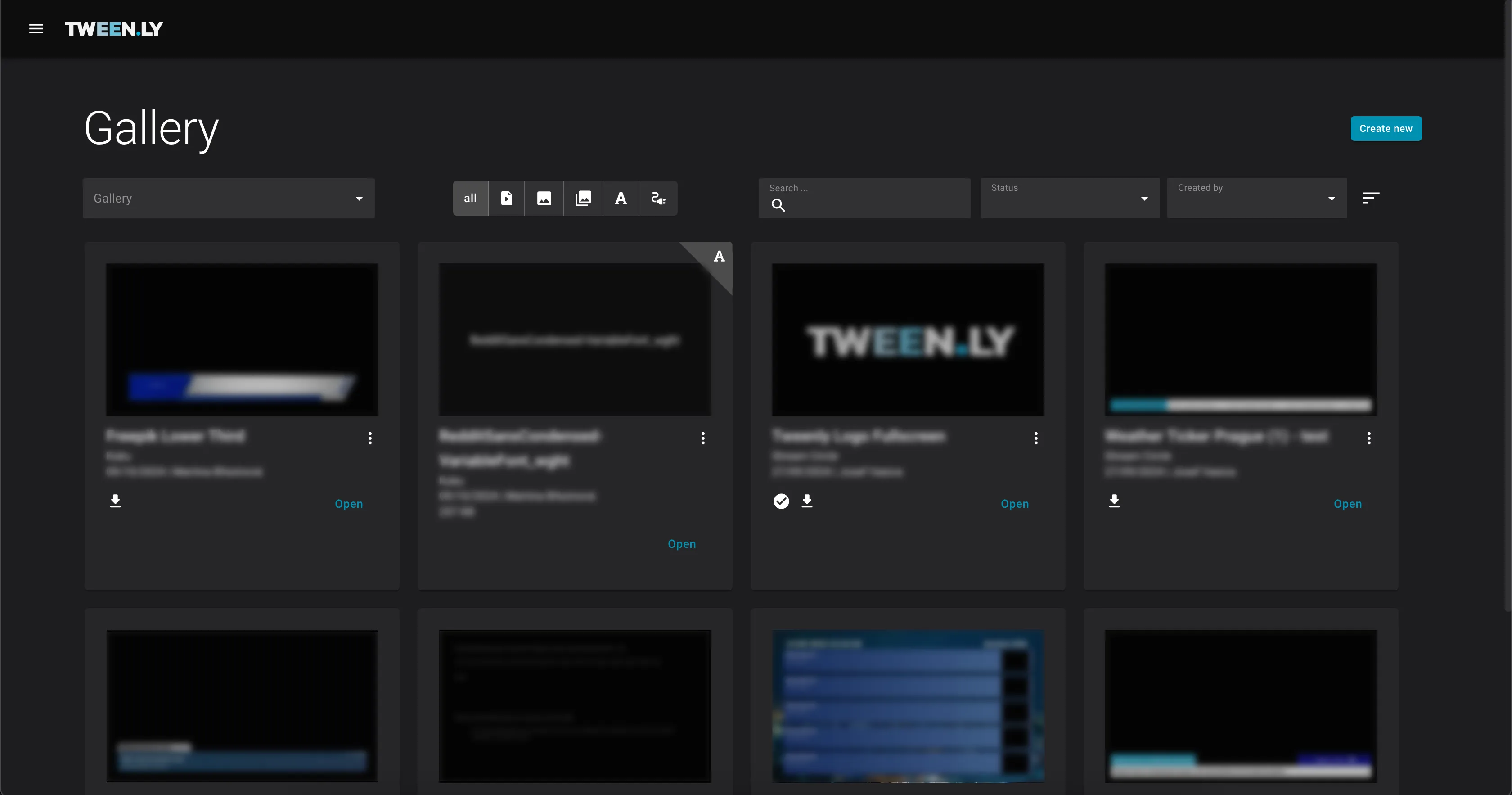
The Gallery is where you browse, manage, and organize graphics files and assets.
- Filters: Filter by workspace, type, status, or author.
- Sorting: Sort by title or date updated.
- Actions: Edit details, duplicate, export, or delete files.
Workspaces
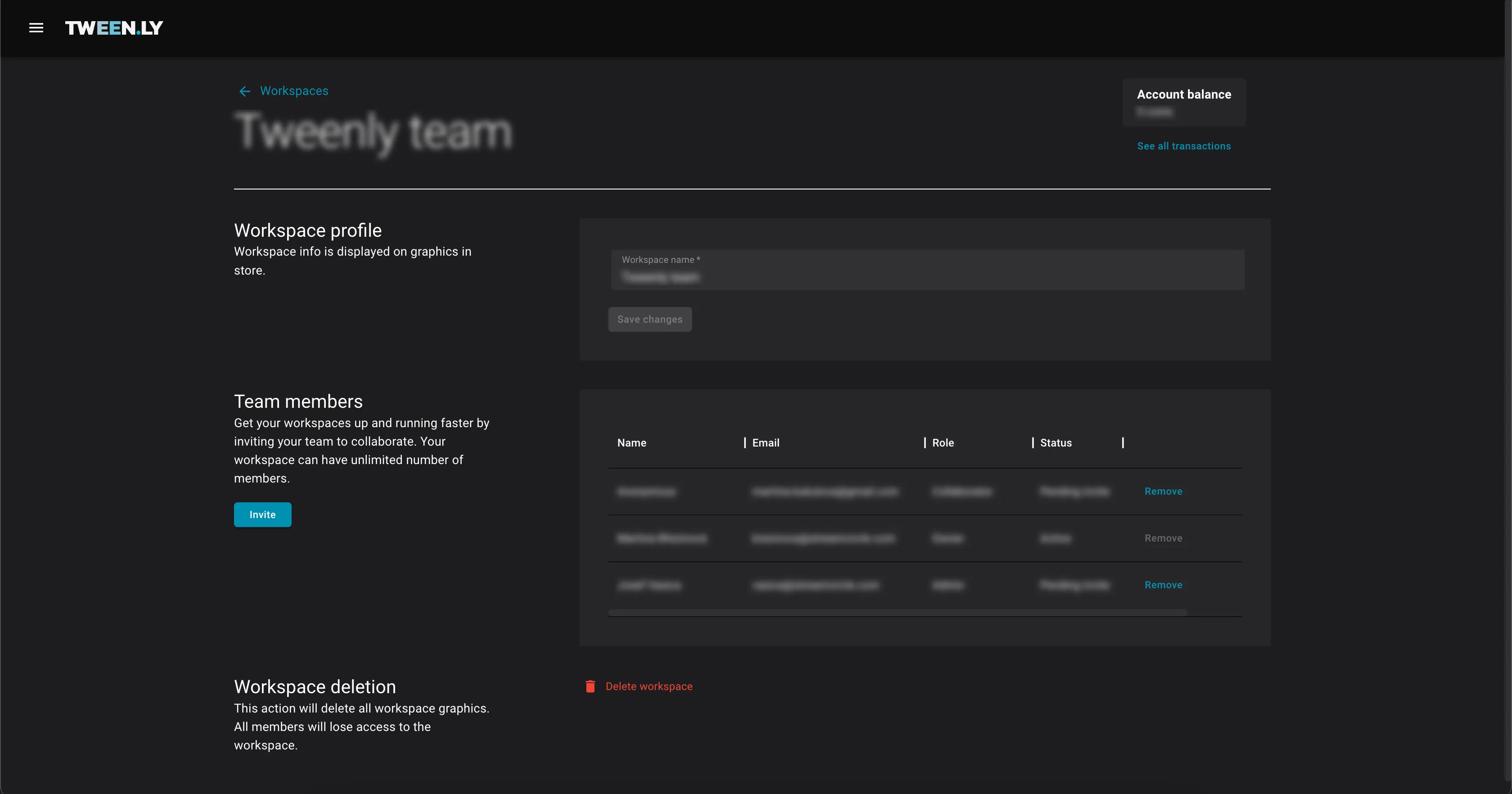
Each workspace contains its own graphics files and assets. Shared workspaces let team members access and edit the same files.
- Personal and Own Workspaces: Every user has a personal workspace, with additional ones available based on the license type.
- Members: Add collaborators with different roles (Owner, Admin, Collaborator) to work on shared files.
Profile
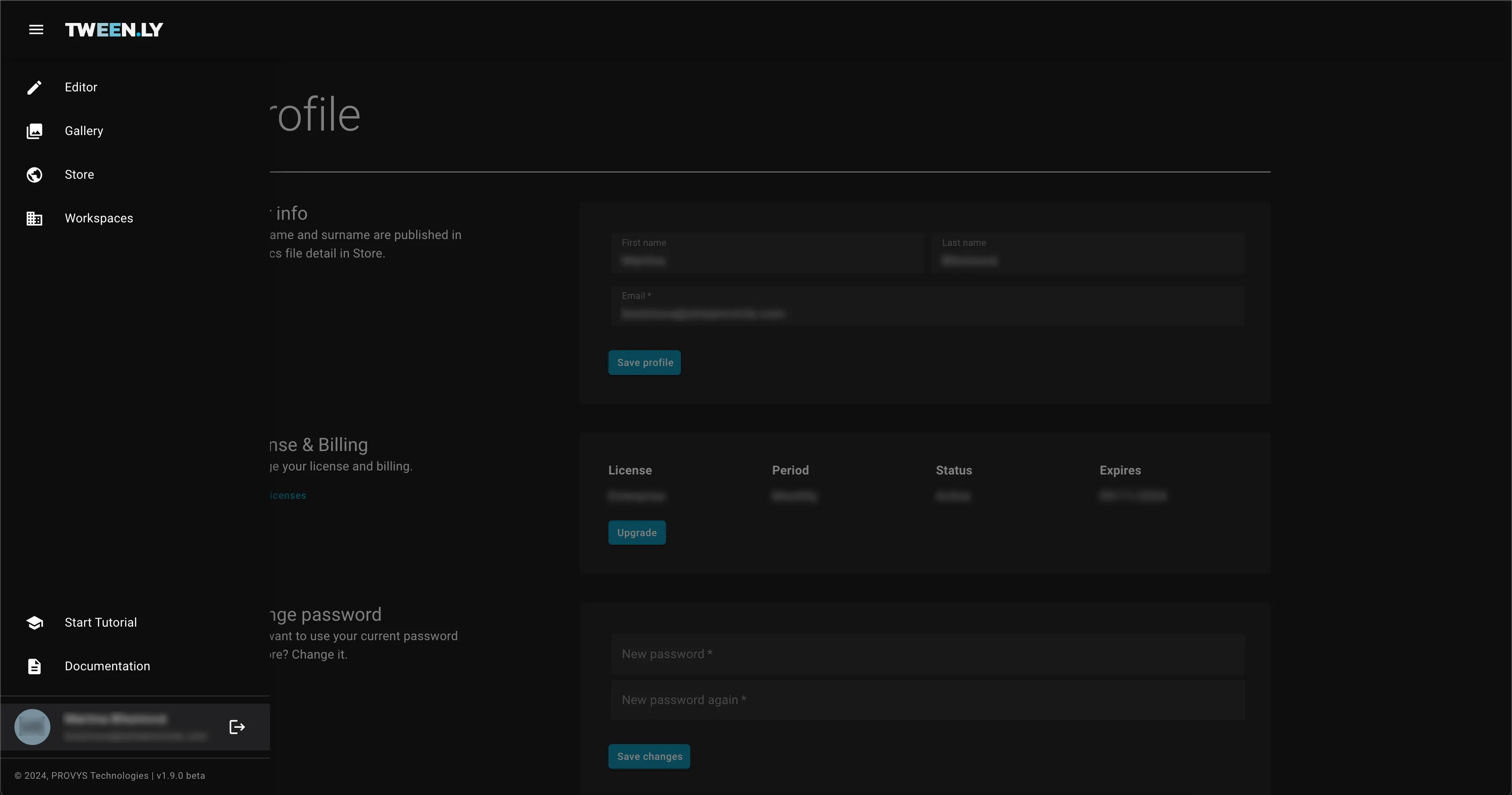
In the Profile section, edit your name, email, password, and license plan.
- Manage your license.
- Delete your account if needed.