

Editor Overview
The Editor is where you create, edit, and animate broadcast graphics.
Editor layout
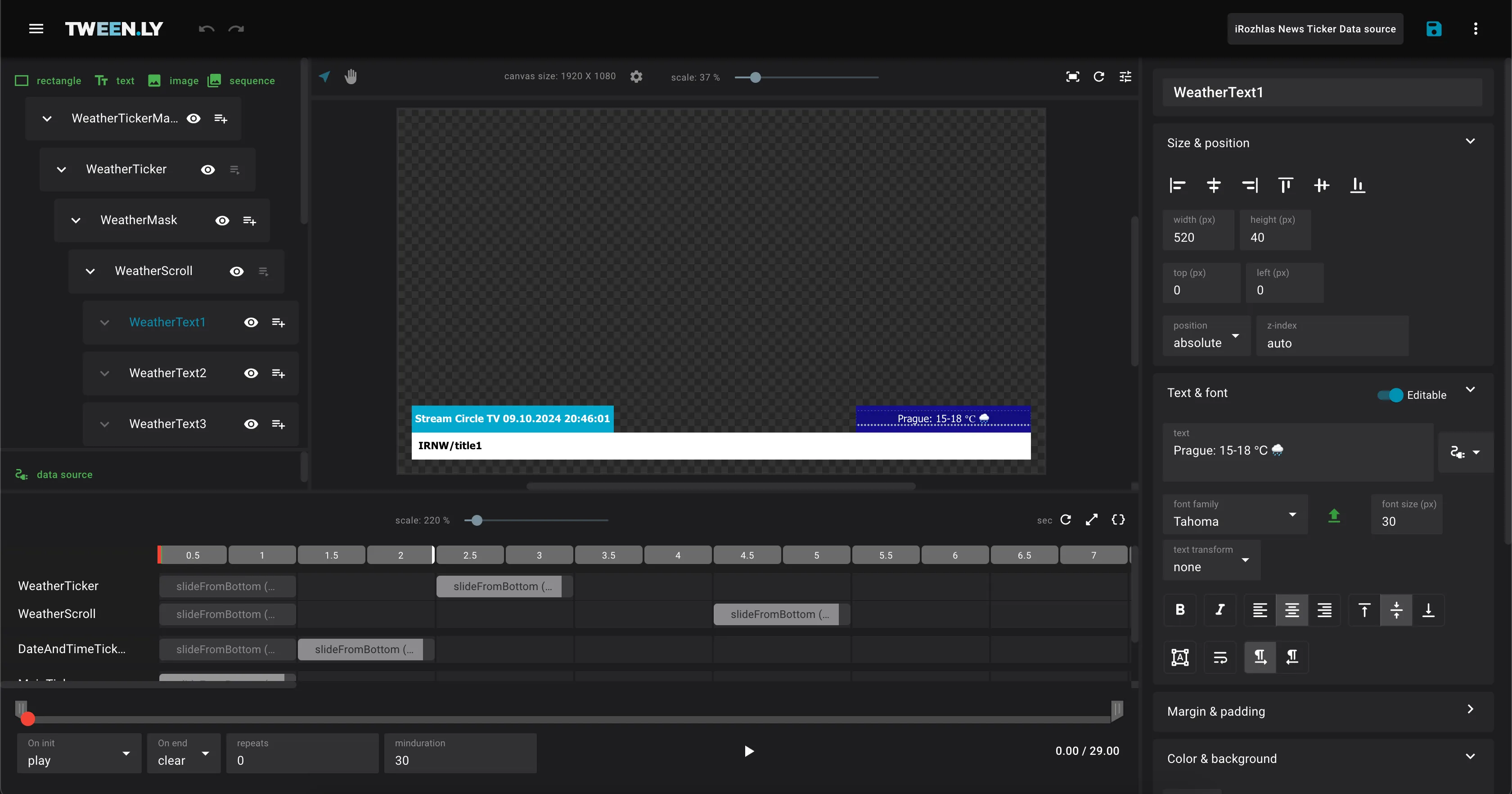
The Editor consists of five key sections:
- Top Bar – File actions, main menu, and project settings.
- Left Sidebar – Tools for adding objects and managing object hierarchy.
- Canvas – The main workspace for arranging and animating objects.
- Right Sidebar – Controls for object properties and animations.
- Bottom Panel (Timeline) – Manages animation timing and playback.
1. Top bar (file management)
The Top Bar provides quick access to essential file actions.
- Main Menu – Navigation for Gallery, Profile, and project creation.
- File Actions:
- Save – Manually save your work.
- More – Access New, Duplicate, Export and Clear actions.
2. Left sidebar (object management)
The Left Sidebar is split into two panels:
- Object Tree (top) — object hierarchy and controls for adding new objects.
- Data Source (bottom) — data sources linked to the current graphic.
Adding objects
Click an object type in the Left Sidebar to add it to the scene: Rectangle, Text, Image, Sequence, Crawl Ticker, or Scroll Ticker.
Object tree
- Reorder objects by moving them up, down, or to the root level.
- Nest objects by placing them inside a rectangle or image container.
- Right-click an object to duplicate, delete, or add a child object.
For full details on each object type, properties, and nesting rules, see Objects.
3. Canvas (main workspace)
The Canvas is where you visually arrange and modify graphics. Use the Selection tool (V) to select and manipulate objects, or the Hand tool (H) to pan. Zoom from 10% to 200% with the slider, or fit the canvas to the viewport.
For full details on zoom, panning, selection, resizing, grid snapping, and canvas settings, see Canvas & Navigation.
4. Right sidebar (object properties & animations)
The Right Sidebar provides tools for modifying objects and animations.
Object properties
Select any object to configure its properties: position, size, color, borders, gradients, transforms, filters, and more. See Objects for a full property reference.
Animations
The Animate tab lets you add and customize animations for the selected object. Adjust animation types, duration, and easing. See Animations & Timeline for the full guide.
5. Bottom panel (timeline & animation control)
The Timeline controls animation playback and timing.
- Animations – Define how objects change over time (e.g., move, fade, or scale). Each animation appears as a block on the timeline.
- Playhead – Drag the playhead to preview different points in the timeline.
- Duration & Timing – Adjust the start time, end time, and duration of animations by dragging objects on the timeline.
Playback & labels
Use playback controls (play, pause, go to begin, next, outro) to preview your graphic. Add labels to the timeline to define pause points, jumps, or data refresh triggers. See Animations & Timeline for details on labels, easing, and code triggers.
TL;DR
- The Editor has five sections: Top Bar, Left Sidebar, Canvas, Right Sidebar, and Bottom Panel (Timeline).
- Add objects from the Left Sidebar, arrange them on the Canvas, configure properties in the Right Sidebar.
- Control animation timing and playback in the Timeline.
- Save manually — Tweenly does not auto-save.